




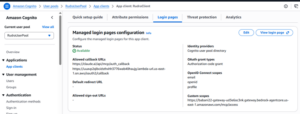
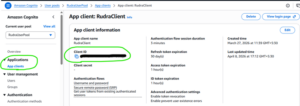
Follow the below screenshot and edit the App Client>Login Page
( Initially ignore the lambda url, just keep the first url in the callback URL )
Create Agentcore Gateway and set the Agentcore Runtime as target
Step-1 : Create a python file in your project named create_gateway.py
import boto3
COGNITO_POOL_ID = “us-east-1_ceZ9MNmAF”
COGNITO_CLIENT_ID = “YOUR_COGNITO_CLIENT_ID”
GATEWAY_ROLE_ARN = “YOUR_IAM_ROLE_ARN”
RUNTIME_URL = “YOUR_AGENTCORE_RUNTIME_ARN”
client = boto3.client(“bedrock-agentcore-control”, region_name=“us-east-1”)
print(“Creating gateway…”)
try:
resp = client.create_gateway(
name=“GIVE_A_NAME”,
roleArn=GATEWAY_ROLE_ARN,
protocolType=“MCP”,
authorizerType=“CUSTOM_JWT”,
authorizerConfiguration={
“customJWTAuthorizer”: {
“allowedClients”: [COGNITO_CLIENT_ID],
“allowedAudience”: [COGNITO_CLIENT_ID], # ← list now
“discoveryUrl”: f“https://cognito-idp.us-east-1.amazonaws.com/{COGNITO_POOL_ID}/.well-known/openid-configuration”
}
}
)
gateway_arn = resp[“gatewayArn”]
gateway_url = resp[“gatewayUrl”]
print(f“✅ Gateway ARN: {gateway_arn}“)
print(f“✅ Gateway URL: {gateway_url}“)
except Exception as e:
print(f“❌ create_gateway failed: {e}“)
exit(1)
print(“\nAdding Runtime target…”)
try:
t = client.create_gateway_target(
gatewayArn=gateway_arn,
name=“GIVE_A_RUNTIME_TARGET_NAME”,
targetConfiguration={
“mcpServer”: {
“url”: RUNTIME_URL
}
}
)
print(f“✅ Target created: {t[‘targetId’]}“)
except Exception as e:
print(f“❌ create_gateway_target failed: {e}“)
exit(1)
print(“\n========================================”)
print(“Paste this URL into Claude connector:”)
print(gateway_url)
print(“========================================”)
and run
python create_gateway.py
Step-2 : Set the runtime as target
Create a python file named gateway_target.py and paste the below code.
import boto3
RUNTIME_URL = “https://bedrock-agentcore.us-east-1.amazonaws.com/runtimes/arn%3Aaws%3Abedrock-agentcore%3Aus-east-1%3A055447612883%3Aruntime%2Fbabani22-QWCv582hZv/invocations?qualifier=DEFAULT”
GATEWAY_ID = “babani22-gateway-ud3e6oc3nk”
client = boto3.client(“bedrock-agentcore-control”, region_name=“us-east-1”)
print(“Adding Runtime target…”)
try:
t = client.create_gateway_target(
gatewayIdentifier=GATEWAY_ID,
name=“babani22-runtime-target”,
targetConfiguration={
“mcp”: {
“mcpServer”: { # ← url goes inside mcpServer
“endpoint”: RUNTIME_URL
}
}
}
)
print(f“✅ Target created: {t[‘targetId’]}“)
gateway = client.get_gateway(gatewayIdentifier=GATEWAY_ID)
gateway_url = gateway[“gatewayUrl”]
print(“\n========================================”)
print(“Gateway URL for Claude connector:”)
print(gateway_url)
print(“========================================”)
except Exception as e:
print(f“❌ Failed: {e}“)
And run
python gateway_target.py
Now go to your AWS console and then go to Bedrock Agentcore and check the gateway and target created.
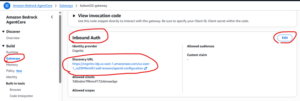
now edit the “Inbound Auth” and remove the Allowed audiences
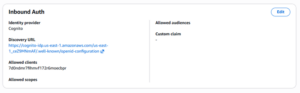
Now check the Target status if it’s not ready then select the Target and click Edit inside Action
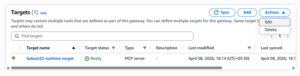
And go to the Outbound Auth configurations and select OAuth Client. Then below the dropdown have to select the OAuth Client,
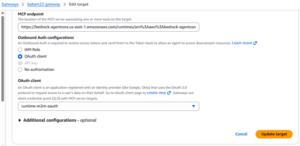
if nothing there You need to create a separate Cognito app client specifically for the gateway → runtime M2M auth
Here’s the full step-by-step:
Step 1 — Create a new Cognito app client with client credentials
in cmd inside your project folder run
F:\my-first-mcp-server> aws cognito-idp create-user-pool-client –user-pool-id us-east-1_ceZ9MNmAF –client-name “gateway-runtime-m2m” –generate-secret –allowed-o-auth-flows “client_credentials” –allowed-o-auth-scopes “YOUR_GATEWAY_RESOURCE_URL/access” –allowed-o-auth-flows-user-pool-client –region us-east-1
This will output a ClientId and ClientSecret. Save both values.
Step 2 — Create the OAuth2 credential provider in AgentCore
Replace CLIENT_ID_HERE and CLIENT_SECRET_HERE with values from Step 1:
Create a python file named “create-oauth-provider.json” and paste the below code
“name”: “runtime-m2m-oauth”,
“credentialProviderVendor”: “CUSTOM_OAUTH2”,
“oauth2ProviderConfigInput”: {
“customOauth2ProviderConfig”: {
“oauthDiscovery”: {
“discoveryUrl”: “https://cognito-idp.us-east-1.amazonaws.com/WRITE_THE_COGNITO_USER_POOL_ID/.well-known/openid-configuration”
},
“clientId”: “PASTE_THE_CLIENT_ID”,
“clientSecret”: “PASTE_THE_CLIENT_SECRET”
}
}
}
then run:
aws bedrock-agentcore-control create-oauth2-credential-provider –cli-input-json file://create-oauth-provider.json –region us-east-1
This will output a credentialProviderArn. Save it.
Step 3 — Update the gateway target with the OAuth credential provider
Create update-target2.json — replace CREDENTIAL_PROVIDER_ARN_HERE with the ARN from Step 2:
Paste the below code and replace arn
{
“gatewayIdentifier”: “babani22-gateway-ud3e6oc3nk”,
“targetId”: “LTFE1RH32Z”,
“name”: “babani22-runtime-target”,
“targetConfiguration”: {
“mcp”: {
“mcpServer”: {
“endpoint”: “https://bedrock-agentcore.us-east-1.amazonaws.com/runtimes/arn%3Aaws%3Abedrock-agentcore%3Aus-east-1%3A055447612883%3Aruntime%2Fbabani22-QWCv582hZv/invocations?qualifier=DEFAULT”
}
}
},
“credentialProviderConfigurations”: [
{
“credentialProviderType”: “OAUTH”,
“credentialProvider”: {
“oauthCredentialProvider”: {
“providerArn”: “CREDENTIAL_PROVIDER_ARN_HERE“,
“scopes”: []
}
}
}
]
}
Then run :
aws bedrock-agentcore-control update-gateway-target –cli-input-json file://update-target2.json –region us-east-1
Now check the target in agentcore gateway the status should have been updated to Ready
Now Let’s connect your mcp with Claude.
Go to Settings > Connectors > Add Custom Connector
In the URl paste the agentcore gateway url
and in the Additional Settings inside Client ID paste your cognito userpool Client ID
Now click Connect
It should redirect you to the Cognito sign in page
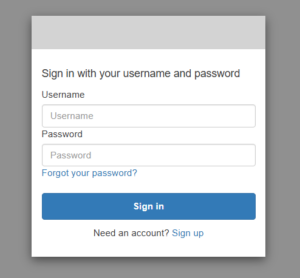
If it does not and gives error as “invalid_scopes”
Then you need a proxy URL to connect to the Cognito userpool from Claude.
Follow the below steps to create a proxy URL using Lambda
Step-1: Create a lambda function and paste the below code.
Code . . . . . . .
Now create it’s Function URL in the Configuration tab. Now have to use this url as discovery url so that Claude can connect to the Cognito
Step-2: Change Discovery URL
Go to Agentcore Gateways > Edit the Inbound Auth > Paste the lambda function url
- Now Connect Again from Claude. This time you will see the Cognito Sign In page.
Enter username and password and sign in. - Then if you face an “Authorization Failed…” error now
navigate to Gateway and update the Discovery URL and paste your cognito url.
Now click Connect again from Claude.
This time it will get connected.
Now you can test your tools.